Most PDF-to-CSV tools do one thing: pull rows out of a PDF and hand them back to you. That sounds useful until you realize the totals don’t match, a row got dropped somewhere in the middle, and now you’re back to checking every line by hand. The extraction happened. The trust didn’t.
BANKTRUST is built around a different idea. It doesn’t just extract transactions from PDF bank statements; it reconciles them, flags suspicious rows, checks starting and ending balances against computed totals, and only lets you export once the variance is confirmed at zero. Every export ships with verifiable proof. No silent errors.
Founder Amin Seid put it plainly on the Product Hunt launch page: most tools focus on extracting data, while BANKTRUST focuses on whether that data is safe to use. That’s a meaningful distinction for anyone who has ever imported a CSV into QuickBooks only to discover a discrepancy three weeks later.
What BANKTRUST Actually Does Differently
Reconciliation Before Export
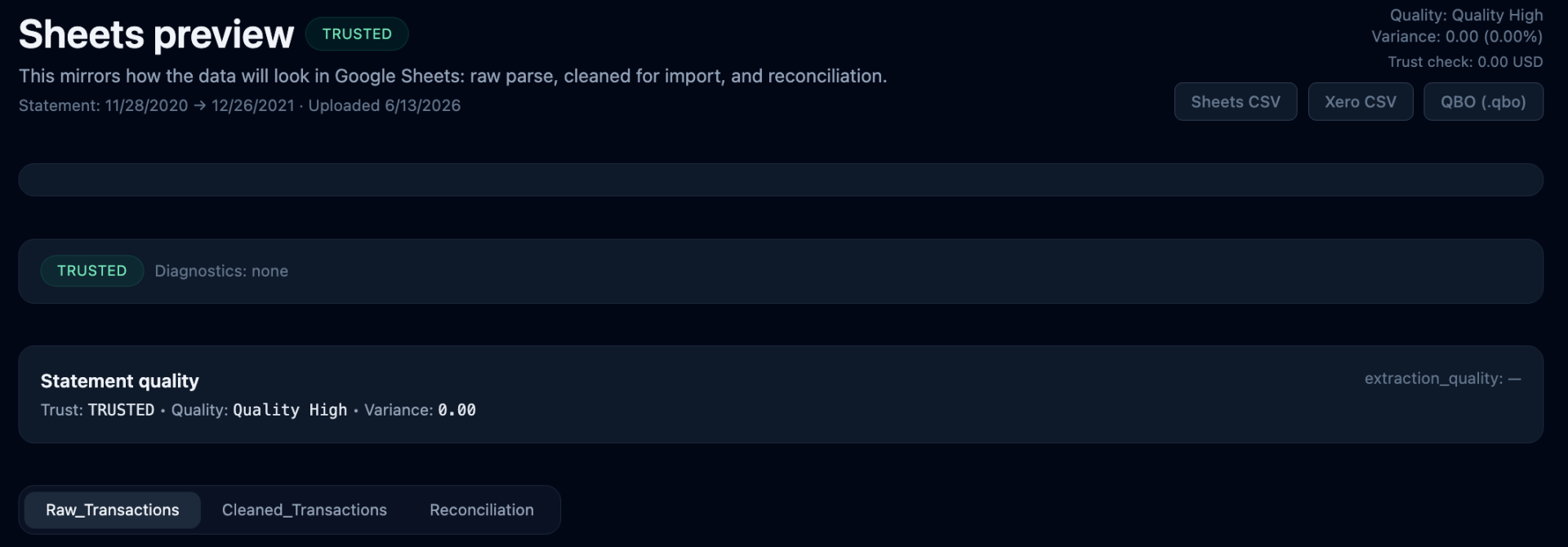
This is the core feature. BANKTRUST computes transaction totals independently and compares them against the statement’s reported starting balance, ending balance, debits, and credits. If everything matches, the variance reads 0.00 and the statement gets classified as Trusted. If something is off, you see exactly where the mismatch is before anything reaches your accounting software. That comparison happens automatically on every upload.
Anomaly Flagging and Suspicious Row Detection
Beyond the balance check, BANKTRUST surfaces parse-suspect rows, balance gaps, and outlier amounts before export. These aren’t buried in a log file somewhere. They appear in the review screen as clearly labeled flags, so you can make a judgment call rather than discover the problem downstream. It’s the difference between catching an issue at the source versus cleaning up after a bad import.
Ledger-Ready Exports in Multiple Formats
Once a statement clears reconciliation, you can export it as a CSV for Google Sheets, a Xero CSV import file, a QuickBooks QBO file. The data comes out cleaned and structured. No manual reformatting required before it enters your books.
Multi-Client Workspace for Recurring Workflows
BANKTRUST is built for firms handling statements month after month across multiple clients. Each client gets their own workspace in the dashboard. You open the client, upload the statement, review the reconciliation, and export. The workflow is the same every time, which matters when you’re processing dozens of statements on a deadline.
How It Helped Marcus Close the Books Faster on a Monday Morning
Marcus runs a small bookkeeping practice with about fourteen business clients. Every month, the first Monday is statement day: collect PDFs, convert them, check the numbers, fix whatever broke, then import. It usually eats most of the morning.
At 8:45 AM he uploaded a Chase statement for one of his retail clients using BANKTRUST. The statement covered October and had 149 transactions. Within seconds the dashboard showed the reconciliation panel: statement balances on one side, computed totals on the other. Start balance matched. End balance matched. Debits matched. Credits matched. Variance: 0.00. Status: Trusted.
He clicked through to the Trust and Quality panel out of habit, expecting to find something to review. Balance gaps: 0. Outlier amounts: 0. Parse-suspect rows: 0. There was nothing to fix. He exported the QBO file and imported it directly into QuickBooks.
By 9:10 AM, that client’s October books were closed. The whole process, from PDF upload to completed import, took under thirty minutes including his own review time. The previous month, the same statement had taken nearly two hours because a row had been duplicated by his old extraction tool and he only caught it during the final balance check.
How BANKTRUST Processes a Statement
Step 1: Open the Client Workspace
Start in the dashboard and select the client you’re working on. Each client has a dedicated space so statements stay organized and repeatable across monthly cycles.
Step 2: Upload the PDF
Drop in the bank statement PDF. BANKTRUST extracts all transactions, computes totals, and runs the reconciliation check automatically. No bank logins required. Statements only.
Step 3: Review the Reconciliation Panel
You see starting balance, ending balance, debits, and credits side by side: what the statement reported versus what BANKTRUST computed. Any flagged rows appear here too. If the variance is 0.00 and no flags need attention, the statement is marked Trusted.
Step 4: Export With Confidence
Choose your format: Sheets CSV, Xero CSV, QBO. The export reflects the reconciled, cleaned data. Nothing leaves until the numbers check out.

BANKTRUST Pricing
Two plans are available, both with a free trial:
- Professional, $29/month: Up to 100 statements per month, full reconciliation, anomaly detection, and exports for Sheets, Xero, QBO. Built for single-client or smaller workflows.
- Business, $49/month: Up to 300 statements per month, multi-client parallel processing, faster processing priority, and priority support. Designed for higher-volume firms.
Both plans include guaranteed reconciliation, meaning variance must equal zero before any export is allowed. You can upgrade at any time from the dashboard.
Worth Trying If You Handle Statements Regularly
If you’re a bookkeeper, accountant, or finance team member who processes PDF bank statements on any kind of recurring schedule, BANKTRUST addresses a real problem. Extraction tools are easy to find. A tool that proves the extraction is correct before you import anything is much harder to come by. Start a free trial at banktrustapp.com and run one of your real statements through it. The reconciliation panel alone is worth the look.