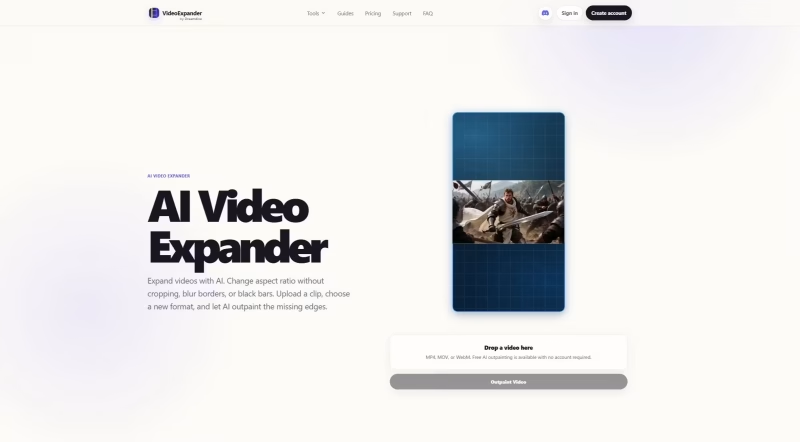
You have a great clip. The lighting is good, the subject is sharp, and the moment is exactly right. Then you realize it’s 9:16 and you need 16:9 for YouTube. Most tools give you three bad options: crop it and lose half the frame, stretch it and make everything look wrong, or slap a blurred duplicate on the sides and hope nobody notices. None of those feel like real solutions.
VideoExpander takes a different approach entirely. Instead of working around the aspect ratio problem, it uses AI video outpainting to generate the missing parts of the scene. The original footage stays preserved in the center of the output while new visual content is created around it. The AI uses context from the original frames, including lighting, motion, colors, and nearby scene details, to extend the video into the format you need.
It works on filmed footage, animation, and AI-generated video. No installation required, no account needed to try the free tier, and the upload tool sits right on the homepage. That low barrier to entry is refreshing, especially when you just want to see whether the output is actually usable before committing to anything.
What VideoExpander Can Actually Do
The tool covers several specific use cases that come up constantly for creators, editors, and marketers. Here’s what’s built in:
Portrait to Landscape Conversion
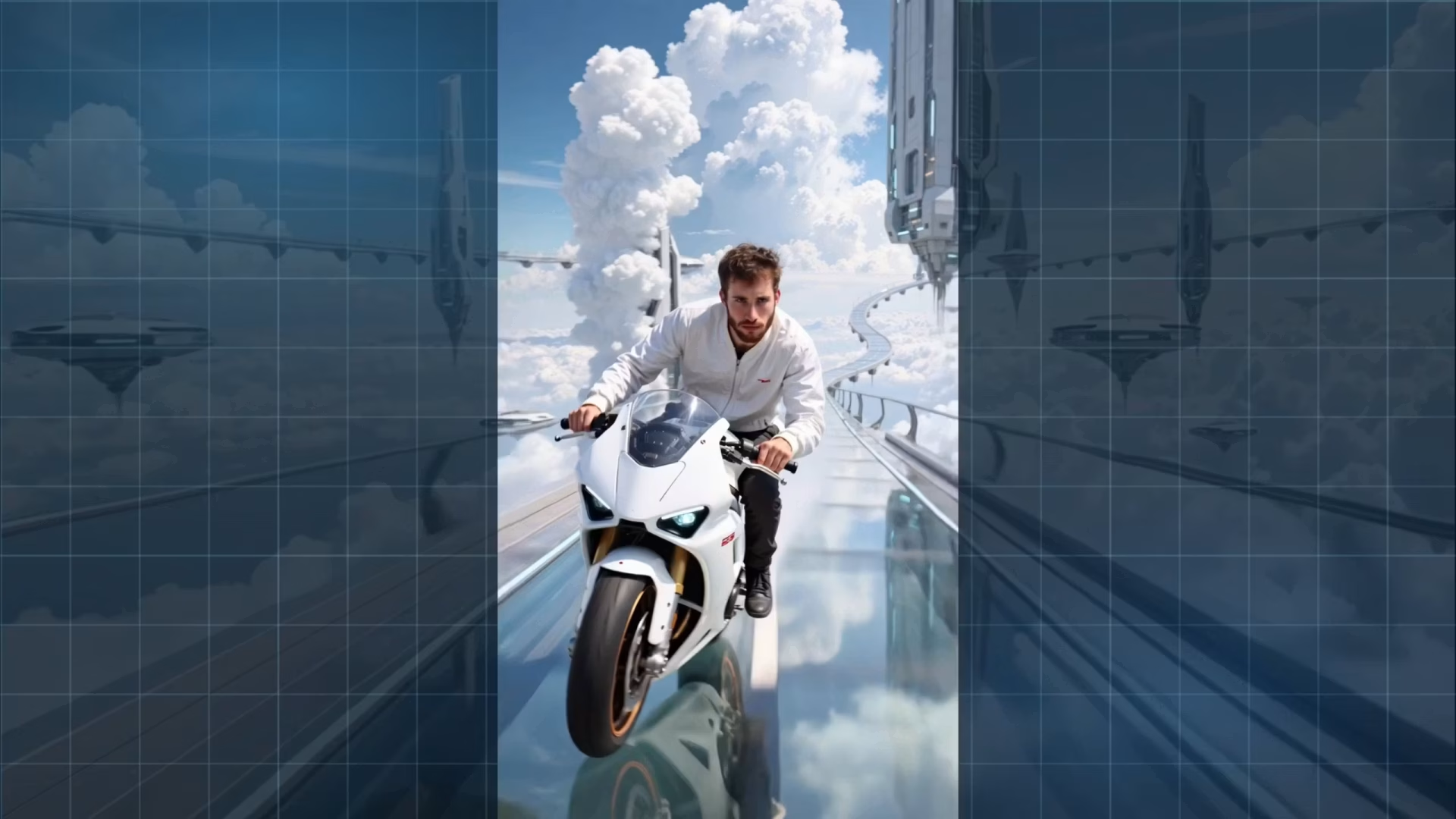
This is probably the most common request. You shot a Reels clip and now need it for YouTube or a website hero. VideoExpander keeps the full vertical source centered and generates studio space, scenery, or environmental context on the left and right sides. The original subject, composition, and motion stay exactly as filmed.
Landscape to Vertical
The reverse workflow is just as useful. A 16:9 interview or desk setup gets preserved completely inside a 9:16 canvas, with generated space added above and below. No face cropping, no gesture cutting, no loss of the desk context that made the shot worth keeping.
Black Bar Removal
Portrait footage dropped into a landscape canvas often ends up with pillarbox bars on both sides. VideoExpander fills those bars with generated scene content rather than a blurred repeat of the original. In one example on the site, a vertical video with black side bars is expanded so the surrounding scene fills the empty space instead of leaving pillarbox bars or using a blurred duplicate background.
Same-Ratio Uncropping
This one is less obvious but genuinely useful. If a shot feels too tight, you can add padding on all sides without changing the aspect ratio. For creators who need to uncrop videos with AI, this workflow adds space around the original frame while keeping the same output format. The output can still be 16:9, but the subject now has room to breathe and the environment around it looks wider. It resembles a camera pullback rather than a digital zoom.
Animation and AI Video Support
Video outpainting isn’t limited to real footage. The square animation to 4:5 example on the site shows a paper-cut style robot scene being extended vertically, with generated greenhouse elements that match the flat, layered visual style of the source. That’s a harder problem than continuing a natural landscape, and it holds up well.
A Real Example: Expanding a Square Product Video to Widescreen
One of the clearest examples on the VideoExpander site shows a square product-style clip being expanded into a widescreen format.
Normally, converting a 1:1 video to 16:9 creates an immediate problem. Cropping can cut into the subject, black bars make the result look unfinished, and blurred side fills make the edit feel like a workaround.
With AI video outpainting, the original square frame stays centered while new visual content is generated on the left and right sides. The result feels closer to a shot that was composed for widescreen from the beginning, rather than a square clip forced into a wider canvas.
That is the main difference between traditional video resizing and AI video expansion: the canvas gets extended instead of the original footage being cut down.
How VideoExpander Processes Your Clip
Step 1: Upload your video
Drag an MP4, MOV, or WebM into the browser tool. No account required for the free tier, and no software to install. The upload happens directly in the page.
Step 2: Choose your target format
Select from 16:9, 9:16, 1:1, or 4:5. The aspect ratio buttons appear immediately after upload, so there’s no digging through settings menus. For uncropping without changing the ratio, you set a padding percentage instead.
Step 3: AI generates the missing edges
The model uses visual context from the original clip, including nearby objects, lighting, motion, colors, and scene structure. It then generates new visual content across the added space so the expanded area matches the source as naturally as possible.
Step 4: Preview and export
You can compare the expanded result against the original before downloading. The final export is an MP4 you can drop straight into your editing timeline or upload directly to any platform.
Free Plan and Pro Pricing
VideoExpander has two tiers:
- Free: $0, no account required, supports all four aspect ratios, good for testing the output quality on your own clips before upgrading.
- Pro: $15 per month, higher-quality outpainting generation, advanced controls including two-step expansion passes, better fit for production footage, client work, and repeat usage across social, ads, and websites.
The free tier is genuinely useful for short clips with stable shots. Pro makes more sense if you’re running this regularly or need the output to hold up in a client-facing context.
Where AI Video Outpainting Works Best
Like any generative AI tool, VideoExpander works best when the missing areas are visually predictable. Backgrounds, scenery, sky, walls, floors, water, product surfaces, studio space, and simple environmental details are usually easier to expand naturally.
More difficult cases include text near the edge of the frame, logos, hands, faces, complex objects, fast motion, or important details that are already cut off in the source video.
For best results, start with a short, clean clip, use moderate expansion settings, and compare the output before using it in a final edit.
Worth Trying If You Work with Video
VideoExpander is a focused tool that does one thing well: it lets you change the aspect ratio of a video without destroying what made it worth keeping. If you regularly move footage between platforms, repurpose content for different placements, or work with AI-generated clips that come out in the wrong format, it’s worth running your next problem clip through the free tier.
For real before-and-after examples, visit videoexpander.ai/examples.