Most AI writing tools hand you a blank box and wait. You explain the context, describe the recipient, summarize the thread, and then finally ask for a draft. By the time you get a usable response, you’ve done most of the thinking yourself. That’s not assistance. That’s just a fancier keyboard.
KText takes a different approach entirely. It sits at command as a floating hover icon on every window and reads what’s already on your screen: the email thread, the support ticket, the chat message from your client. You don’t re-explain anything. You just tell it what you want to happen, and it drafts from scratch.
The tool was built by Kane Scott, who leads a technical team and got tired of the same daily friction: having complex information in his head and struggling to get it out as a clear, well-framed message to the right person. He built KText to solve that. He now runs every single message he sends through it.
What KText Actually Does: Core Capabilities
Screen-Aware Drafting from Scratch
This is the part that separates KText from every rewriter you’ve tried before. Open any empty text field in any Windows app, click the floating hover icon, hit Draft, and KText reads your active screen for context. It infers what the reply needs to say from the thread, ticket, or conversation already visible. No copy-pasting. No re-summarizing. It just knows.
Intent-First Writing with Voice Dictation
Not every message is a simple reply. Sometimes you have a specific angle you want to take. You can type a rough intent into the box or press the mic and speak it aloud, explaining the situation like you’d tell a colleague. KText takes that messy, incomplete thought and turns it into a polished, ready-to-send draft. Talkers finally have a workflow that suits them.
Highlight and Rewrite Any Section
Already have something written but one paragraph is off? Select just that section, click the hover icon, and KText rewrites only what you’ve highlighted. It drops the revision right back into place. You stay in the app. No switching windows, no context loss.
AI Persona and Tone Controls
The AI Persona settings let you shape how KText thinks and sounds before it writes a single word. You can adjust reasoning depth, verbosity, inference level, and communication style across axes like formal versus casual, candid versus diplomatic, and transactional versus personal. For sensitive conversations where framing really matters, Pro Mode applies a deeper layer of communication expertise to get the tone exactly right.
Saved Prompts and Team Libraries
Repetitive writing tasks can be turned into reusable prompts. Build your own from scratch or import a team library through the Prompt Manager. One user described spending weeks putting off an automation task, then solving it in one session by saving a custom prompt in KText. That’s the kind of compounding value that makes the tool worth keeping around.
A Common KText Use Case:
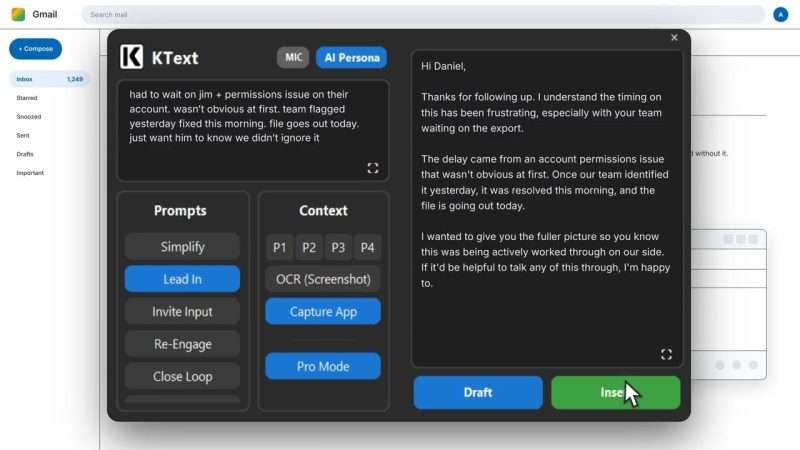
Marcus Okafor is a customer success manager at a mid-size SaaS company. At 8:47 on a Tuesday morning, he opens his inbox to find a frustrated follow-up from a client asking why an export file still hasn’t arrived. The real answer is messy: a permissions issue, a delayed flag from another team, and a fix that only landed that morning. Writing that out clearly, without it sounding like a list of excuses, is the kind of task Marcus would normally spend 20 minutes on.
Instead, he clicks the KText hover icon while his Gmail tab is open. He types a short intent: “Explain the delay was a permissions issue flagged yesterday, fixed this morning, file going out today. Want him to feel like we were on top of it.” He hits Draft.
Twelve seconds later, the response box has a three-paragraph reply. It acknowledges the frustration without dwelling on it, explains the sequence of events clearly, and closes with an offer to talk it through. Marcus reads it once, clicks Insert, and it drops straight into the reply field. He sends it at 8:49. Two minutes, start to finish, for a message that actually sounds like him.
How KText Fits Into Your Daily Writing Flow
Step 1: Click Into Any Text Field
KText works inside any Windows application. Email clients, support tools, browsers, chat apps, it doesn’t matter. The floating hover icon appears wherever your cursor goes.
Step 2: Choose Your Input Method
You have three options. Hit Draft to let KText read the screen and generate a reply with no input from you. Type a rough intent to steer the direction. Or speak your intent aloud using the mic button if typing feels slow.
Step 3: Add Context if Needed
Use the four context slots (P1 through P4) to paste in background material: product notes, a coworker’s message, an outage announcement. KText draws from all of it when building the draft.
Step 4: Review, Refine, Insert
The draft lands in the response box. Edit it directly if something’s off, or hit Reroll to generate a new version. When it’s right, click Insert and the formatted text goes straight into the field where you’re working.
KText Pricing
Every new account starts with $1 in free AI credits to try the product before committing. Paid plans are straightforward:
- Basic: $9.99/month, includes $10 in monthly AI credits
- Pro: $19.99/month, includes $25 in monthly AI credits
- Enterprise: $49.99/month, includes $70 in monthly AI credits
You can also earn credits through the referral program: refer up to five friends and collect up to $50 in credits when they subscribe.

Who Should Try KText
If you spend a meaningful chunk of your workday writing messages, whether that’s client updates, support replies, internal escalations, or follow-up emails, KText is worth a serious look. It’s built specifically for Windows and for people who want to get the right words out fast, without wrestling a chatbot to get there. Try it at ktext.net and start with the free credits before deciding on a plan.