You know the feeling. You’ve just spent 40 minutes filling out a detailed web form, writing a long email, or crafting a careful AI prompt. Then your browser freezes. Or Windows decides it’s the perfect moment for an update. Gone. All of it. Ctrl+Z does nothing. The autosave that was supposed to exist… didn’t. That specific frustration is exactly what pushed one developer to build UTexSave, a small Windows utility that silently records everything you type into a local text file, in real time, with zero cloud involvement.
The backstory is right there on the Product Hunt page: the maker lost 30 minutes of writing in a web form after a browser crash, looked for a simple solution, and found nothing adequate. So he built it himself. That origin story matters because it shapes what UTexSave actually is: a practical, no-frills safety net for typed text, not a feature-bloated productivity suite trying to do too much.
It runs entirely on your machine. No account. No sync. No subscription. Under 2 MB in size. For anyone who writes a lot in browsers, contact forms, AI chat interfaces, or anywhere outside a proper text editor, this is the kind of tool that earns its place in the system tray fast.
Key Features of UTexSave
Real-Time Local Text Recording
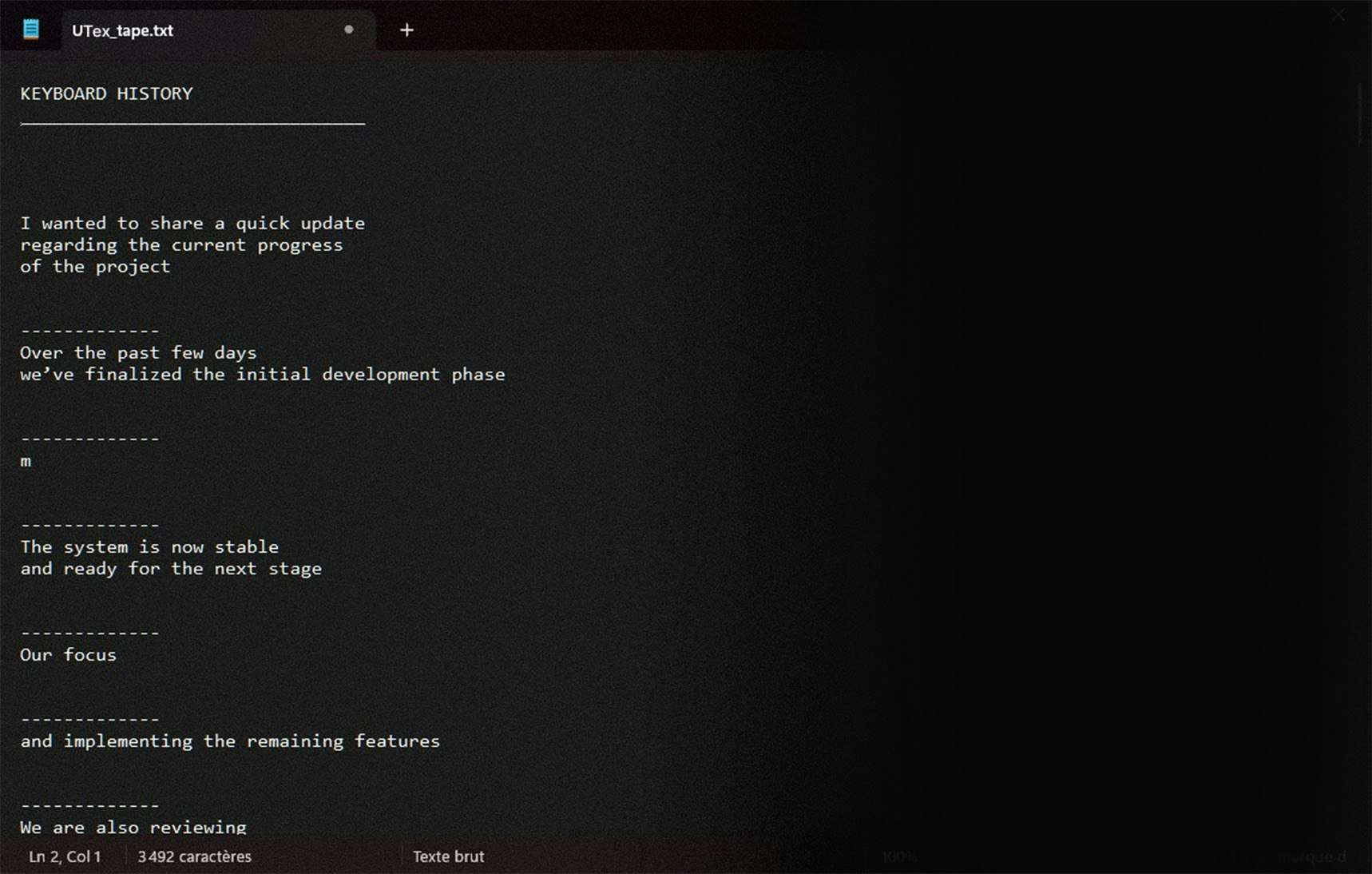
UTexSave captures every keystroke chronologically and writes it to a local text file on your PC. It works across browsers, forms, AI tools, email clients, basically anywhere you type on Windows 11. The recording happens in the background with no noticeable performance impact. The software is under 2 MB and does not run heavy background tasks, so your system stays responsive.
Previous Session Recovery After a Crash
This is the core feature. If your PC crashes, loses power, or freezes mid-session, UTexSave has already saved what you were writing. When you restart, you can access the previous session history directly from the taskbar menu and pull back whatever you lost. No more rewriting from scratch after an unexpected shutdown.
Clipboard History Logging
Beyond keystrokes, UTexSave also records your copy-paste actions. The Standard version keeps the last 100 clipboard items; the Pro version extends that to 400. This is useful for anyone who copies snippets while researching or assembling longer pieces of writing, since those copied fragments are often the first thing lost in a crash.
Stop Recording for Sensitive Input
Privacy is a real consideration when something is logging your keystrokes. UTexSave addresses this with a simple pause feature accessible from the taskbar. When you need to type a password or a confidential code, you stop recording with one click and resume when you’re done. It’s a small detail that shows the developer thought about real-world use.
Text Rebuild with AI Assistance
Because UTexSave saves text chronologically rather than structurally, the raw history file can look messy, with repeated fragments and scattered segments. The Pro version includes a “Text Rebuild” option: you copy the raw history, paste it into an AI tool like ChatGPT or Claude using a dedicated prompt, and get back a clean, restructured version of what you originally wrote. It’s an honest workaround for the format limitation.

Sara’s Tuesday Morning, Recovered
Sara is a freelance content strategist who spends a lot of her mornings filling out client intake forms and writing briefs directly in browser-based project management tools. At around 9:15 on a Tuesday, she was finalizing a detailed creative brief inside a client’s web portal, about 600 words covering tone, audience, objectives, and content calendar notes. She hadn’t copied it to her clipboard. The portal had no autosave indicator.
Her laptop updated without warning. The session closed. The form wiped clean.
Before that morning, she would have spent the next hour reconstructing the brief from memory and scattered notes. Instead, she right-clicked the UTexSave icon in her system tray and opened View History. Everything she had typed that session was there, in chronological fragments. She copied the raw text, ran it through the Text Rebuild prompt in ChatGPT, and had a clean, readable version back in under three minutes. She pasted it into the form, made two small edits, and submitted it by 9:25.
Ten minutes of recovery instead of sixty. That’s the practical value here.
How UTexSave Records and Recovers Your Text
Step 1: Install and Activate
Download UTexSave from the website or the Microsoft Store. Run the installer, enter your license key, and launch the app. It starts with Windows automatically and sits quietly in the taskbar tray.
Step 2: Write Normally
No changes to your workflow are needed. UTexSave records in the background. Every keystroke goes into a local text file on your machine, timestamped and sequential.
Step 3: Recover When You Need It
Click the tray icon to access your options: View History for the current session, View Previous Session for pre-crash recovery, or the clipboard history log. Pro users also get access to the History Folder, which stores the last 30 sessions for longer-term recovery.
Step 4: Pause When Necessary
Before entering passwords or sensitive codes, click Stop Recording from the tray menu. Resume recording when you’re back to regular writing.
Pricing: Two Lifetime Licenses
UTexSave uses a one-time payment model with no recurring fees. Both licenses are lifetime.
- Standard License: $9.90, installs on up to 3 PCs, includes current session recovery, clipboard history (last 100 items), and text restructuring.
- Pro License: $39.90, installs on up to 20 PCs, extends clipboard history to 400 items, and adds the History Folder with the last 30 sessions for long-term recovery.
A free trial version is also available to check hardware compatibility before buying. For most solo users, the Standard license at under $10 is an easy call.
Who Should Try UTexSave
If you regularly type long-form content in browsers, web forms, AI chat interfaces, or anywhere without a native autosave, UTexSave is worth the few minutes it takes to install. It’s a focused tool that does one thing well: makes sure a crash never costs you an hour of work again. Pick it up at utexsave.com or through the Microsoft Store, and run the free trial first to confirm compatibility with your setup.