Samsung recently revealed a range of new Galaxy Phones for the year 2020. Among those to steal the show were the Galaxy Z Slip and the Galaxy S20 Ultra.
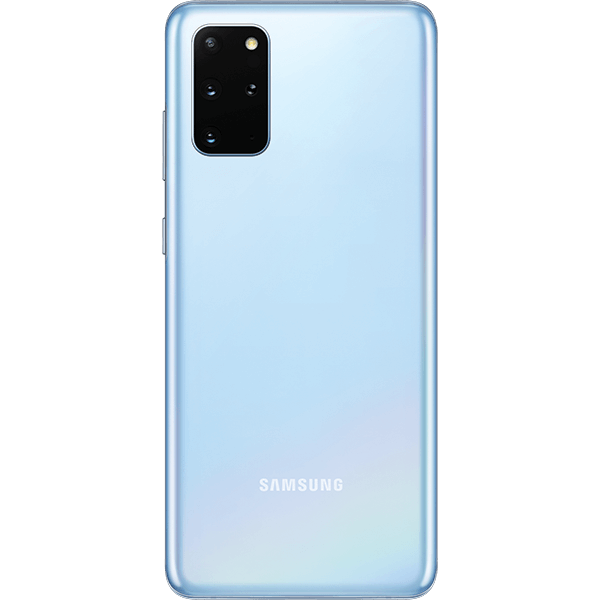
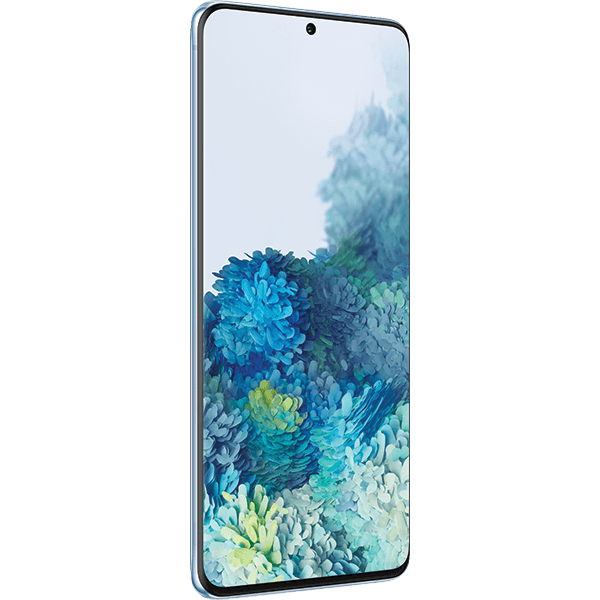
The Galaxy S20 will have three variants: the 6.2-inch Galaxy S20, the 6.7-inch Galaxy S20 plus and the 6.9-inch Galaxy S20 Ultra. The prices of these phones start at $1000, $1200 and $1400 respectably. Of the three variants, the S20 Ultra has the most advanced camera setup. The difference between the three variants respectively are:
The Samsung Galaxy S20:
This is the most basic S20 model in the lineup. It will come with a 6.2 inch OLED display. The resolution of this smartphone is Quad HD. The three cameras on the back will be of 12MP+64MP+12MP and the camera in the front will be of 10MP. It will run with an Exynos 990 processor chip. The RAM of the phone will be either 8GB or 12GB, depending on the variant which you are purchasing. It will come with an internal storage of 128GB. The battery will be 4000 mAh which is considerably good. It is rated IP68 water-resistant. There will be an optional 5G variant available as well. The phone will start from a range of $1,349.
The Samsung Galaxy S20+:
This is a variant which is a grade above the base model S20. It will come with a 6.7 inch OLED display. The resolution again will be Quad HD. There is no difference in the back and front cameras except that there will be an added ToF Feature on the back camera. Again, it will run on an Exynos 990 processor. The RAM variant will depend on you whether you purchase the 8GB or 12GB variant. The internal storage will come in two options of 128GB and 512GB. There will be an increased battery size of 4500 mAh. The phone will be IP68 water resistant naturally. A 5G model is again an option that you have to take whether you want to purchase that one or not. It will start at $1,499.
The Samsung Galaxy S20 Ultra:
This is the best and most powerful variant in the series of S20. It will come with a 6.9 inch OLED display. The resolution will be the same – Quad HD. But there is a huge difference in the back cameras. The back cameras will be 108MP+48MP+12MP+ToF. If you are wondering about the front camera, it will have a 40 MP camera. The phone will run on Exynos 990 processor only. There will be two RAM variants available for you to choose from – 12GB and 16GB. The internal storage again will come in two options – 128GB and 512GB. If you are thinking about the battery, the battery is again upgraded to 5000 mAh, which means your device will run for a long period than usual. The phone is IP68 water-resistant. It will be 5G only and it will start from a price of $1,999.
All of the three smartphones have some great features and that is why they are priced this high. It is hard to determine if paying almost $1,999 for a smartphone is worth it or not, but one thing is sure that the quality you will get will be high.
Instructions on How To Fix Black Screen / Frozen Screen Samsung Galaxy S20 / S20+ / S20 Ultra:
Screen is Frozen:
Before continuing, remove all screen protectors and cases, make sure the touchscreen is dry and clean, and remove gloves if you’re wearing them. The screen may not recognize touches through gloves or extremely dry and chapped fingers.
Force reboot the phone:
Press and hold the Volume Down and Power keys for 10-20 seconds to perform a simulated battery pull, which is the same thing as a force reboot or soft reset.
Press volume down and power key to power off
Optimize with Device Maintenance:
This feature is not available on Verizon Nougat (7.0) phones.
Check storage and verify the issue isn’t caused by lack of storage. If so, transfer contents to a card, pc, or cloud.
Navigate to Apps > Settings.
Touch Device maintenance.
Touch OPTIMIZE NOW.
This feature will improve your overall performance by scanning for abnormal power usage, wasted storage space, and unstable or malicious apps.
Check for a Software update:
Navigate to Apps > Settings.
Navigate to and select Software update.
Touch Download updates manually.
The device will check for a software update.
If an update is available, select the prompt to download and install it. Keep in mind that updating your phone’s software can take up to 20 minutes to complete.
Follow the prompts on the screen to complete the software update.
Menu verbiage may vary between carriers. And if an update is expected, but not available, try performing an update with Smart Switch.
Reboot the phone in Safe mode:
Press and hold the Power key until the Power menu is displayed.
Touch and hold Power off until the Safe mode icon is displayed.
Touch Safe mode to start your phone in Safe mode.
Once the phone reboots, you’ll be required to enter your credentials if you have security set up on the phone. If you’ve entered Safe mode successfully, you’ll see Safe mode displayed at the bottom of the screen.
You can also enter Safe mode using the hardware keys on the phone. Power off your phone, and then power it back on. When the Samsung logo appears, press and hold the Volume Down key until you see Safe mode at the bottom of the screen.
If your phone operates normally in Safe mode, uninstall apps you downloaded just before it began having the issue. After uninstalling each app, restart the phone and see if it is functioning normally.
Black Screen:
Force reboot the phone:
Press and hold the Volume Down and Power keys for 10-20 seconds to perform a simulated battery pull, which is the same thing as a force reboot or soft reset.
Press volume down and power key to power off
Charge the phone.
Make sure it’s a Samsung charger, everything is connected, and plugged into a working power outlet. Once your phone has charged for an hour, disconnect it and turn it on by holding down the Power key until you see the Samsung Galaxy logo indicating it’s powering on.
If your phone doesn’t turn on after charging, try a forced reboot again.
If you still see a black screen, you can’t perform a forced reboot, and/or it makes sound and vibrates (with the screen still black), please visit the Support Center to request service.
How To Increase Touchscreen Sensitivity:
Navigate to Settings.
From the home screen, swipe up for the Apps Screen and touch Settings. You can also pull the notification bar down and touch the Settings icon.
Find Advanced Features.
Scroll down and touch Advanced Features.
Enable Touch sensitivity.
Scroll down and find Touch sensitivity. Touch the slider next to it to enable it.
Experiencing difficulties with your Android Device, check out our “How To” page on how to resolve some of these issues.
Other Android Technical Reviews:- Android