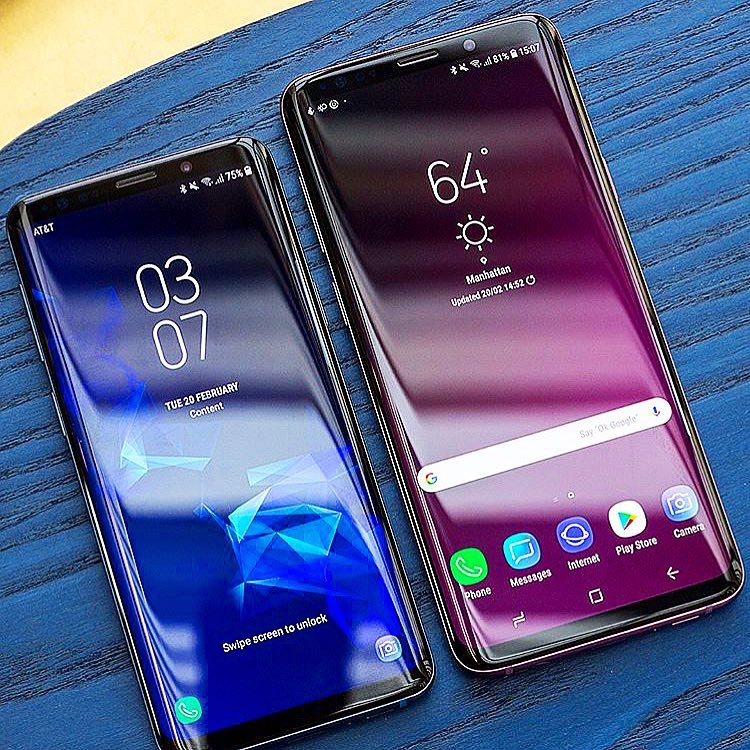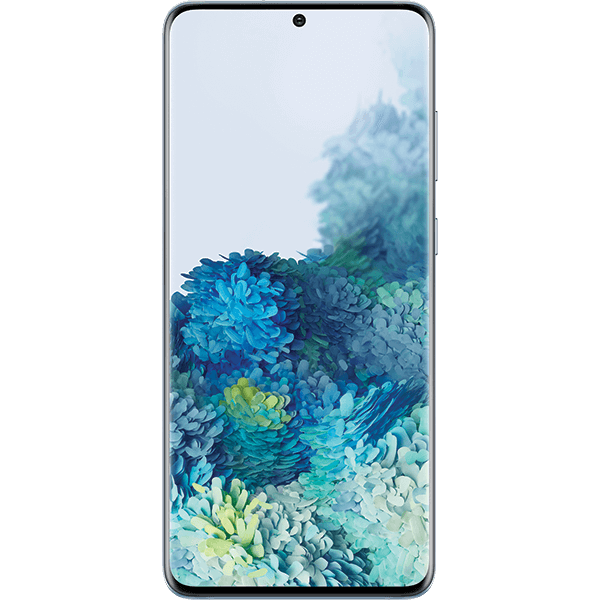
Samsung recently revealed a range of new Galaxy Phones for the year 2020. Among those to steal the show were the Galaxy Z Slip and the Galaxy S20 Ultra.
The Galaxy S20 will have three variants: the 6.2-inch Galaxy S20, the 6.7-inch Galaxy S20 plus and the 6.9-inch Galaxy S20 Ultra. The prices of these phones start at $1000, $1200 and $1400 respectably. Of the three variants, the S20 Ultra has the most advanced camera setup. The difference between the three variants respectively are:
The Samsung Galaxy S20:
This is the most basic S20 model in the lineup. It will come with a 6.2 inch OLED display. The resolution of this smartphone is Quad HD. The three cameras on the back will be of 12MP+64MP+12MP and the camera in the front will be of 10MP. It will run with an Exynos 990 processor chip. The RAM of the phone will be either 8GB or 12GB, depending on the variant which you are purchasing. It will come with an internal storage of 128GB. The battery will be 4000 mAh which is considerably good. It is rated IP68 water-resistant. There will be an optional 5G variant available as well. The phone will start from a range of $1,349.
The Samsung Galaxy S20+:
This is a variant which is a grade above the base model S20. It will come with a 6.7 inch OLED display. The resolution again will be Quad HD. There is no difference in the back and front cameras except that there will be an added ToF Feature on the back camera. Again, it will run on an Exynos 990 processor. The RAM variant will depend on you whether you purchase the 8GB or 12GB variant. The internal storage will come in two options of 128GB and 512GB. There will be an increased battery size of 4500 mAh. The phone will be IP68 water resistant naturally. A 5G model is again an option that you have to take whether you want to purchase that one or not. It will start at $1,499.
The Samsung Galaxy S20 Ultra:
This is the best and most powerful variant in the series of S20. It will come with a 6.9 inch OLED display. The resolution will be the same – Quad HD. But there is a huge difference in the back cameras. The back cameras will be 108MP+48MP+12MP+ToF. If you are wondering about the front camera, it will have a 40 MP camera. The phone will run on Exynos 990 processor only. There will be two RAM variants available for you to choose from – 12GB and 16GB. The internal storage again will come in two options – 128GB and 512GB. If you are thinking about the battery, the battery is again upgraded to 5000 mAh, which means your device will run for a long period than usual. The phone is IP68 water-resistant. It will be 5G only and it will start from a price of $1,999.
All of the three smartphones have some great features and that is why they are priced this high. It is hard to determine if paying almost $1,999 for a smartphone is worth it or not, but one thing is sure that the quality you will get will be high.
Instructions on How To Fix Wired Headphones Not Working Samsung Galaxy S20 / S20+ / S20 Ultra:
Check the Basics:
Try something different.
The easiest way to figure out what’s causing the issue is to try another set of headphones on your phone, or try your current headphones with another device.
Remove all accessories and restart your phone:
We want to make sure there isn’t anything that may interfere with plugging in the headphones. Remove the headphones and any connected accessories such as cases, charms, or skins. Once, you have removed everything, restart your phone.
Inspect your headphones for damage:
Take a look at the connector on your headphones and make sure it’s not bent or broken, and that the cable is not damaged or showing any exposed wires.
The easiest way to rule out your headphones as the issue is to try another set of headphones on your phone, or try your original headphones with another device.
Check the headphone jack and volume buttons:
Use the volume up and down keys to make sure they’re working. You also need to inspect the headphone jack on the phone with a flashlight and make sure there is no debris or bent pins. If the pins are bent, please visit the Support Center to request service.
Look for Software Updates:
Check if there are any software updates for your phone by going to Settings > Software Updates. Depending on your carrier, you may need to go to Settings > System Updates. If an update is available be sure to install by following the on screen prompts.
We want to make sure your phone has the latest software installed before continuing further troubleshooting.
Sound Test:
Adjust the volume.
Make sure the media volume is not set to mute. When muted, the speaker icon will be gray and crossed out.
There are two ways to adjust the volume:
The volume buttons on the side of your phone.
The media volume slider on your screen.
If the volume buttons appear stuck or do not work, please visit the Support Center to request service.
Play some audio:
Open your favorite music or video app and play some audio.
Plug your headphones back in and listen for sound.
If you have sound but only from one earbud, this may indicate the headphones are failing and need to be replaced. To be sure, try another audio clip and make sure it is in stereo and not mono. When mono audio is played it is normal for only one earbud to work. Most music apps play their tracks in stereo.
If you don’t have any sound, continue to the next step.
Boot in Safe Mode:
If you use the fingerprint or iris security features, your phone or tablet will require the backup password after rebooting.
Reboot the phone or tablet in Safe mode:
Press and hold the Power key until the Power menu is displayed.
Touch and hold Power off until the Safe mode icon is displayed.
Touch Safe mode to start your phone in Safe mode.
If you have a security feature set up on the phone or tablet, you’ll be required to enter your credentials once the phone or tablet reboots.
If you’ve entered Safe mode successfully, you’ll see Safe mode displayed at the bottom of the screen.
You can also enter Safe mode using the hardware keys on the phone or tablet. Power off your phone or tablet, and then power it back on. When the Samsung logo appears, press and hold the Volume Down key until you see Safe mode at the bottom of the screen.
Check if the phone or tablet is still having the same problem:
Use the phone or tablet normally and see if the issue has been resolved. If the phone or tablet is operating normally, a recently installed app was most likely causing the issue.
If the issue is gone in safe mode:
One of your recently downloaded apps was likely the cause of the problem. Proceed to step 3.
If the issue still exists:
Downloaded apps may not be the cause of the problem. You may need to reset the phone or tablet to the factory setting.
Uninstall apps:
One by one, uninstall any apps you downloaded just before your phone or tablet began having the issue.
After uninstalling each app, restart the phone or tablet and see if it is functioning normally.
After you uninstall the app that caused the issue, you can reinstall the other apps you just deleted.
Reboot the phone or tablet normally:
Press the Power key, and then touch Power Off. Wait until the phone or tablet completely turns off, and then press the Power key again to turn it on. See if the issue has been resolved.
LDI Check:
To determine if the device has experienced liquid damage, you can check the LDI (Liquid Damage Indicator). The LDI is inside the SIM Card Tray slot.
You will need the ejector tool that came with your phone and a flashlight to complete these steps.
Power off your phone and insert the ejection tool into the SIM/MicroSD on your phone to eject the tray.
Shine your flashlight into the SIM/MicroSD slot.
If the device has been exposed to moisture, the LDI will be solid pink/purple/red. Service is required.
If the device has not been exposed to moisture, the LDI will be solid white or solid white with pink/purple Xs. Continue to the next step below.
Physical damage is not covered under the Samsung Limited Warranty, but you can still setup service by contacting us using the options below.
Perform a Factory Data Reset:
All your data will be erased. However, before resetting your phone, you can use Smart Switch or a cloud account to back up your data onto an SD card or USB drive.
You may need your Samsung account password or Lock screen password when resetting your phone.
If you have encrypted your SD card, it must be decrypted before resetting your device, or your data will be lost.
Before you reset the phone or tablet.
Back up your phone or tablet. All data and settings will be erased.
Make sure that you have the username and password for the account that you used to back up your data.
We recommend that your phone or tablet be plugged in to the wall charger during the reset process because it may take up to an hour.
Decrypt your SD Card. Go to Settings > Search for SD > Touch Decrypt SD card.
Perform a factory data reset.
Navigate to Apps > Settings.
Search for and select Factory data reset.
Touch RESET, and then follow the on-screen prompts to complete the reset. You may need to enter your Samsung account password or Lock screen password.
The phone or tablet will reboot.
Complete initial setup:
When the phone or tablet reboots, it will have its original factory settings. Now you will need to go through the initial setup to finish setting up the phone or tablet.
Experiencing difficulties with your Android Device, check out our “How To” page on how to resolve some of these issues.
Other Android Technical Reviews:- Android