Samsung recently revealed a range of new Galaxy Phones for the year 2020. Among those to steal the show were the Galaxy Z Slip and the Galaxy S20 Ultra.
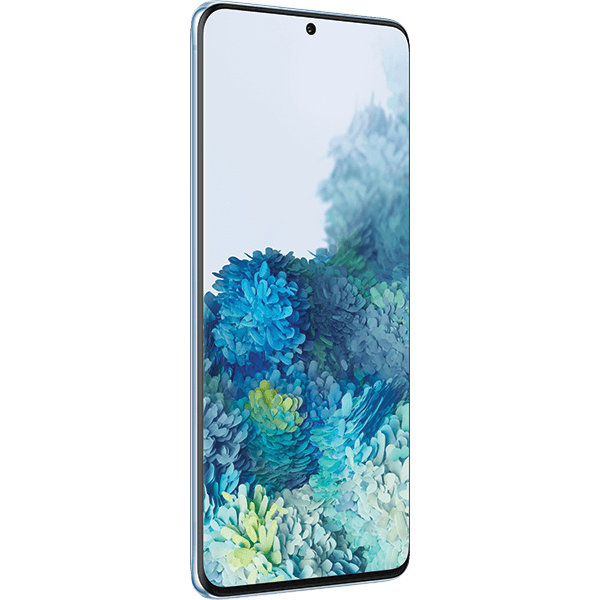
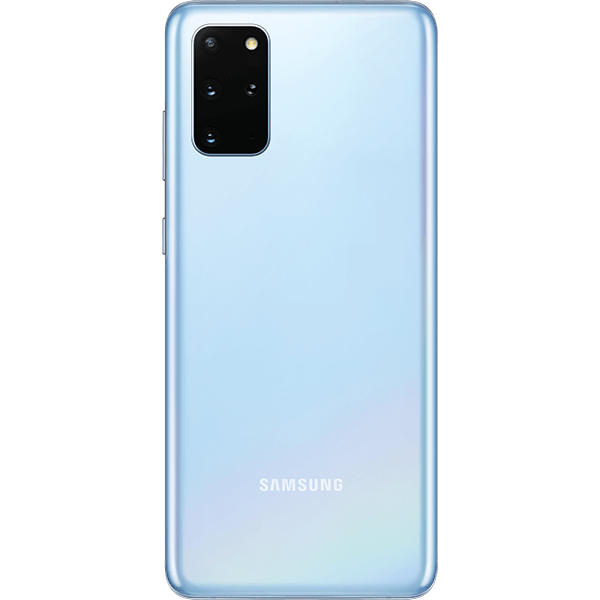
The Galaxy S20 will have three variants: the 6.2-inch Galaxy S20, the 6.7-inch Galaxy S20 plus and the 6.9-inch Galaxy S20 Ultra. The prices of these phones start at $1000, $1200 and $1400 respectably. Of the three variants, the S20 Ultra has the most advanced camera setup. The difference between the three variants respectively are:
The Samsung Galaxy S20:
This is the most basic S20 model in the lineup. It will come with a 6.2 inch OLED display. The resolution of this smartphone is Quad HD. The three cameras on the back will be of 12MP+64MP+12MP and the camera in the front will be of 10MP. It will run with an Exynos 990 processor chip. The RAM of the phone will be either 8GB or 12GB, depending on the variant which you are purchasing. It will come with an internal storage of 128GB. The battery will be 4000 mAh which is considerably good. It is rated IP68 water-resistant. There will be an optional 5G variant available as well. The phone will start from a range of $1,349.
The Samsung Galaxy S20+:
This is a variant which is a grade above the base model S20. It will come with a 6.7 inch OLED display. The resolution again will be Quad HD. There is no difference in the back and front cameras except that there will be an added ToF Feature on the back camera. Again, it will run on an Exynos 990 processor. The RAM variant will depend on you whether you purchase the 8GB or 12GB variant. The internal storage will come in two options of 128GB and 512GB. There will be an increased battery size of 4500 mAh. The phone will be IP68 water resistant naturally. A 5G model is again an option that you have to take whether you want to purchase that one or not. It will start at $1,499.
The Samsung Galaxy S20 Ultra:
This is the best and most powerful variant in the series of S20. It will come with a 6.9 inch OLED display. The resolution will be the same – Quad HD. But there is a huge difference in the back cameras. The back cameras will be 108MP+48MP+12MP+ToF. If you are wondering about the front camera, it will have a 40 MP camera. The phone will run on Exynos 990 processor only. There will be two RAM variants available for you to choose from – 12GB and 16GB. The internal storage again will come in two options – 128GB and 512GB. If you are thinking about the battery, the battery is again upgraded to 5000 mAh, which means your device will run for a long period than usual. The phone is IP68 water-resistant. It will be 5G only and it will start from a price of $1,999.
All of the three smartphones have some great features and that is why they are priced this high. It is hard to determine if paying almost $1,999 for a smartphone is worth it or not, but one thing is sure that the quality you will get will be high.
Instructions on How To Turn Yourself into an Emoji Samsung Galaxy S20 / S20+ / S20 Ultra:
Available screens and settings may vary depending on the carrier and software version.
This feature is only available on select phone models running Android 8.0 and up.
Turn Yourself into an Emoji
Create Your Emoji:
When you’re ready to see the cartoon version of yourself, open the Camera app and then swipe to AR Emoji. Touch Create My Emoji, and then, if needed, touch Allow. Follow the on-screen instructions, and when you’re ready, touch Capture. Touch your desired body type, and then touch Next. Meet your very own emoji.
Create your emoji on your phone
Edit Your Emoji:
You can only change your emoji’s fine details before you save your emoji. You cannot change those details after you’ve saved the final version.
Hmm, something is a little off – do your ears really look like that? If you want to edit some of the finer details, don’t worry. Before you save your emoji, touch the Edit icon in the upper right-hand corner. From there, select your desired categories and change your emoji’s features as needed. When you are done, touch the check sign to save your emoji.
Personalize Messages with Your Emoji:
Why have your own emoji if you can’t share it with anyone? No worries, adding an emoji to your Messages is a cinch. Open the Messages app and create a new message. Touch the Enter message field and the on-screen keyboard will appear. Touch Stickers (the square smiley face) and you’ll see GIFS of your very own avatar. Select your desired emoji, and then touch Send.
Delete Emojis:
You recently changed your style and feel like making a new emoji to match your new image. If you want to delete an old emoji, feel free.
Delete the Emoji Itself:
Open the Camera app and touch AR Emoji. Touch and hold the emoji you want to delete and then touch the red Delete icon. You will be asked if you want to delete that emoji’s stickers. Touch Delete to confirm.
Note: Touching Remove my emoji (or the stop icon) does not delete your emoji. It just changes the camera from AR mode to its regular live feed.
Delete Emoji Stickers from Gallery:
If you’ve made tons of emojis, your phone could be getting overloaded with stickers! Even if you delete an emoji, its stickers may still be saved in your Gallery. To save some space, you can delete some emoji stickers from Gallery.
Navigate to Gallery and then touch Albums. Touch My Emojis and then browse through your stickers. Select the stickers you want to delete and then touch Delete. To confirm, touch Delete again.
What’s New on The Samsung Galaxy S20:
On the Galaxy S20, emojis have been given a complete makeover. They have a whole new design and more customization features than ever. First, you can make your emoji an adult or child, based on your age. There are also more options for both male and female emojis if you prefer to make your emoji gender neutral or androgynous. You can also give your emoji a name and edit it whenever you want. If you’re not crazy about their outfit, you can download a new one from Galaxy Apps.
The coolest part is that you can interact with your emoji in the My Emoji home screen and make your own custom stickers! After you’ve made your emoji, touch AR Emoji, and then touch the pink smiley face to be taken to the My Emoji home screen. Here you’ll be able to access all of the customization features mentioned above.
Experiencing difficulties with your Android Device, check out our “How To” page on how to resolve some of these issues.
Other Android Technical Reviews:- Android