Are you looking for ways how to play Spotify Music on Google Home? Then, you don’t have to search anymore because everything you want to know about it will be discussing here.
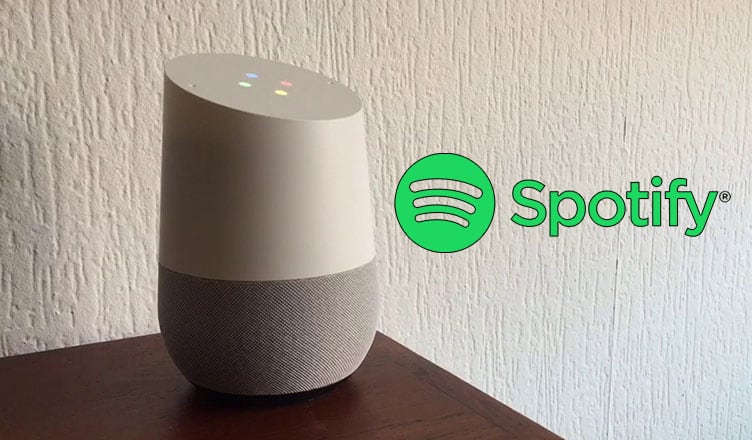
Smart speakers are getting popular and one of these is Google Home. With its amazing technology who wouldn’t be interested to have this kind of speaker. Google Home is a cylindrical speaker that can be connected to the internet which you can control and be activated by using your voice and also responding back thru Google Assistant.
You can also use Google Home as your ordinary speaker to play the songs that you want to listen to including those songs in music services like Spotify. If you want to play Spotify Music on Google Home then are in the right place.
Here, you will know more about Spotify Music on Google Home, how to connect Spotify to your Google Home, and an additional tip on how you can play your Spotify Music on Google Home without Spotify. So, without further ado, let’s get started.
Part 1. Can I Play Spotify Music On Google Home?
Since Spotify is one of the music services that are mostly accessible to different devices, it is no wonder that you can also link it to your Google home.
Most of us know that Google Home has a default player which is Google Play Music, however like I’ve said, you can also use other supported music services like Spotify. Once, it is changed to Spotify, you can start selecting the songs available in your playlist with just the use of your voice and they will be played instantly. All you have to do is also link your Spotify to your Google Home which I will further discuss in the next part.
Part 2. How Do I Connect and Play Spotify Music on Google Home?
If it is your first time to consider play Spotify on Google Home and you haven’t linked your Spotify yet, then you will see below a quick guide for you to follow.
How to link your Spotify to Google Home
- On your smartphone, launch the Google Home app.
- Tap on the plus sign at the upper left of your phone’s screen.
- Select “Music and audio.”
- Choose “Spotify” on the “More music services” option and select “Link Account” once it is pop-up.
- Log in to your Spotify details account once on the Spotify page.
- You will be asked about the terms and conditions, just tap on “Agree” to continue.
- You will be directed to the Music page. Once in it, you should see that your Google Home is already synced with your Spotify and already set as your default music service. You also have the option to unlink Spotify from google home if you prefer other music services as default by selecting a different option.
- Lastly, just exit the window so you Play Spotify Music on Google Home.
What’s also good about Google Home is that you can also control your Spotify by just using simple English voice commands since it can follow many variations.
Here are some of the voice commands that you can try to activate Spotify on Google Home.
- Play “Tonight” by Air Supply.
- Play music by the Carpenters.
- Play some RNB
- What is this song?
- Play Discover Weekly.
- Pause the music.
Remember that you have to start each command with “OK Google” or “Hey Google”. If your Spotify is already linked with your Google Home, then you don’t have to say “on Spotify” since it is already understandable.
Part 3. How to Play Spotify Music On Google Home Without Spotify?
I also encounter this question circulating online from Spotify users If they can play Spotify Music on Google Home without Spotify, then to tell you I can say absolutely yes! All you need is a special tool that can make it possible and the one that I could think of is TunesFun Spotify Music Converter.
1. The Best Tool You Need to Know from TunesFun
TunesFun Spotify Music Converter is a software that can download any songs from Spotify and can convert your music to any format such as MP3, WAV, FLAC, and AAC. This tool also has the ability to make these tracks playable even you are offline and accessible to any devices that you have without limitation.
 Moreover, it is also known for its fast download with a conversion speed of x5 which reduces the waiting time, and even with such speed, it maintains the quality of the tracks similar to the original. It also preserves the ID3 tags and metadata which free you from manually arranging the songs depending on the artist or album and it will be easier for you to edit or change song information later on.
2. Convert Spotify Music to the Supported Format
For you to convert Spotify Music, you are required to install and download first the TunesFun Spotify Music Converter which can be found when you visit their official website. Once it is installed on your computer, you can follow the steps that I provided below as your guide.
Step 1. Select the Spotify tracks you like to convert
You can either copy and paste the song link or drag them on the main interface. You can select more tracks since this software is capable of performing batch conversion.
 Step 2. Set the output format
Choose the audio format that is compatible with your device. In our case, we will choose MP3 since it is one of the audio formats that are compatible with Google Home.
Step 3. Begin downloading the songs by clicking “Convert All”
Once everything is all set, you can start the process by pressing “Convert All” wait until the conversion is done, then once finished, you can click on “View Output file” to access the converted songs and keep them on your computer.
 3. Enjoy Spotify Music on Google Home
 3. Enjoy Spotify Music on Google Home
Next, after conversion, proceed to Google Play Music web player, then select Menu and click on Upload Music. You can drag and drop the converted Spotify songs to its uploading section or you can also use Google Play Music Manager to upload these audio files.
Once your converted Spotify songs have been uploaded, you can now freely start to Play Spotify Music on Google Home even without the use of Spotify.
Part 4. Summary
To sum it all, by reading and following the guide written in this post, it is really possible to play Spotify Music on Google Home. You also learned here that you can also play your desired track on Google home without Spotify itself just by converting them with a professional tool called TunesFun Spotify Music Converter which I can say a great advantage because you can listen to them even if you are offline and don’t have any subscription
Well, that’s everything for now. I hope you find this guide useful and if so, kindly share this with everyone so they will also be guided. Thank you and see you again on my other post.
Other Technical Reviews:- Reviews