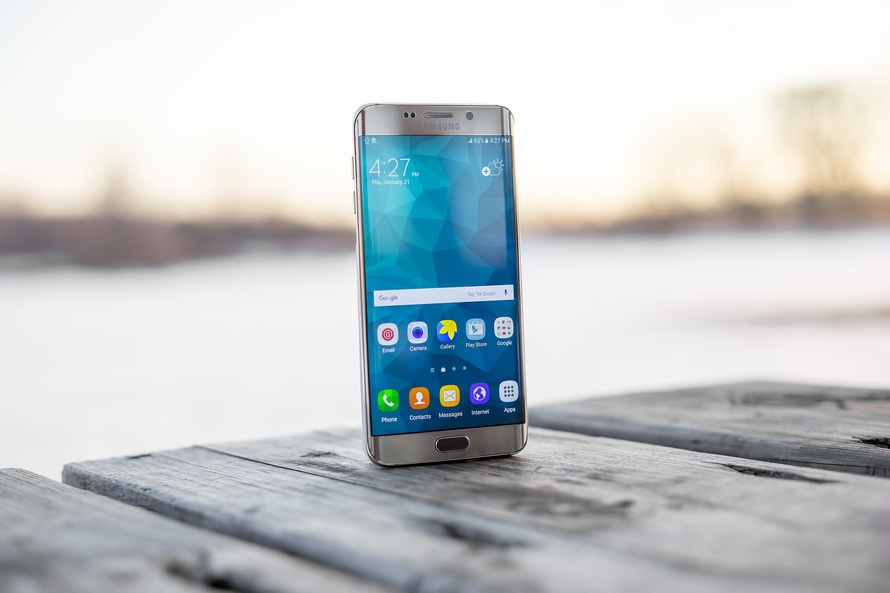
The Samsung Galaxy S6 is a versatile device that can be used for various purposes, including serving as a flashlight in times of need. While it may not be as powerful as a dedicated LED Maglight, the Galaxy S6 flashlight can still come in handy when you require a light source. In this article, we will guide you on how to use the built-in flashlight feature on your Samsung Galaxy S6 and Galaxy S6 Edge. We will also provide some recommendations for essential accessories that can enhance your overall experience with the device.
There may be situations where you find yourself in need of a flashlight, and your Samsung Galaxy S6 can serve that purpose. Instead of downloading a separate flashlight app, Samsung provides a convenient built-in widget that allows you to turn the flashlight on and off with ease. This widget functions as a shortcut on your home screen, providing quick access to the flashlight feature whenever required.
In the following sections, we will explain how to add the torch widget to your home screen and activate the flashlight on your Samsung Galaxy S6. We will also guide you on turning off the flashlight when it is no longer needed.
Using the Built-in Flashlight Widget
Adding the Torch Widget to the Home Screen
To use the flashlight feature on your Samsung Galaxy S6, you first need to add the torch widget to your home screen. Here’s how you can do it:
- Turn on your Samsung Galaxy S6 by pressing the power button.
- On the home screen, press and hold anywhere until the options for “Wallpapers,” “Widgets,” and “Home screen settings” appear.
- Select “Widgets” from the available options.
- Browse through the widgets until you locate the “Torch” widget.
- Once you find the “Torch” widget, select and hold it with your finger.
- Drag the widget to an open position on your home screen and release it.
Congratulations! You have successfully added the torch widget to your home screen. Now, let’s move on to activating the flashlight.
Activating the Flashlight
When you need to use the flashlight on your Samsung Galaxy S6, follow these simple steps:
- Locate the “Torch” icon on your home screen.
- Tap the “Torch” icon to activate the flashlight.
- The flashlight will now illuminate, providing you with the light source you need.
Turning Off the Flashlight
Once you no longer require the flashlight, you can easily turn it off by following these steps:
- Tap the “Torch” icon on your home screen again.
- Alternatively, you can access the notification settings and turn off the torch from there.
By following these instructions, you can effectively use the flashlight feature on your Samsung Galaxy S6 whenever necessary.
Recommended Accessories for Your Samsung Galaxy S6
To enhance your overall experience with your Samsung Galaxy S6, here are some recommended accessories that you might find useful:
Galaxy S6 Phone Case
Protecting your Samsung Galaxy S6 is essential to ensure its longevity. A quality phone case can safeguard your device from accidental drops, scratches, and other damage. There are various options available, including slim cases, rugged cases, and wallet cases that offer additional functionality.
Wireless Charging Pad
Make charging your Samsung Galaxy S6 a breeze with a wireless charging pad. Simply place your device on the pad, and it will start charging without the need for any cables or connectors. This convenience is especially useful when you need to charge your phone quickly or when you’re on the go.
External Portable Battery Pack
If you find yourself frequently running out of battery power while using your Samsung Galaxy S6, an external portable battery pack can be a lifesaver. These battery packs allow you to charge your device on the go, ensuring that you never have to worry about your phone dying when you need it the most.
Samsung Gear VR
For an immersive virtual reality experience, consider investing in the Samsung Gear VR. This virtual reality headset allows you to explore virtual worlds, play games, and watch videos in a truly captivating way. With the Samsung Gear VR, you can take your Samsung Galaxy S6 to a whole new level of entertainment.
Conclusion
In conclusion, the Samsung Galaxy S6 can serve as a reliable flashlight when you find yourself in need of a light source. By using the built-in torch widget, you can easily activate and deactivate the flashlight feature on your device without the need for any additional apps. Additionally, by investing in recommended accessories such as a phone case, wireless charging pad, external portable battery pack, and the Samsung Gear VR, you can further enhance your overall experience with your Samsung Galaxy S6. So, the next time you require a flashlight, remember that your Samsung Galaxy S6 has got you covered!