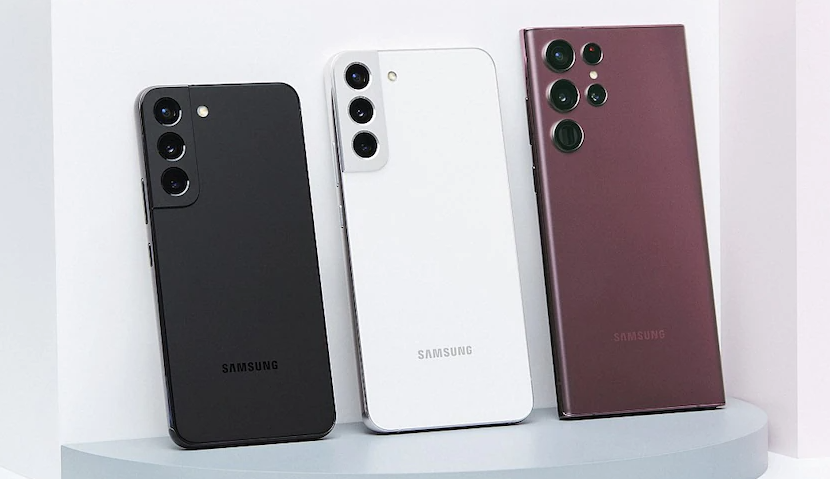
The Samsung Galaxy S22 series has generated a lot of buzz since its unveiling at the unpacked 2022 event. Samsung is betting high on this year’s S series devices, expecting them to break all previous sales records. Although the devices are not yet available for sale and pre-orders are not open in most countries, many fans are eagerly waiting to get their hands on the latest S series.
Excitingly, the official firmware files for the Samsung Galaxy S22 series have now gone online and are available for download. These firmware files are essential for various reasons, including device backup and manual OS updates. In this article, we will explore why you might need these firmware files, how to download them, and other related information.
Why Do You Need These Firmware Files?
There are several reasons why having the official firmware files for your Samsung Galaxy S22 can be beneficial:
- Device Backup: Having the firmware files as a backup on your computer is crucial in case your device gets bricked or the operating system file gets corrupted. By flashing the firmware files, you can quickly restore your device’s functionality and avoid any further hassles.
- Early Access to OS Updates: Samsung rolls out the latest OS updates in phases, which means you may have to wait for the OTA (over-the-air) update. If you are an impatient person and want to experience the new OS build immediately, you can manually flash the latest firmware file on your device.
- Testing New Features: By manually installing the latest firmware, you can get early access to new features and improvements introduced in the updated OS. This allows you to test and explore the new functionalities before they are officially rolled out to all users.
How to Download the Firmware Files
To download the official firmware files for your Samsung Galaxy S22, follow these steps:
- Visit the download page provided by Samsung.
- Choose your device variant: Galaxy S22, Galaxy S22 Plus, or Galaxy S22 Ultra.
- Select the appropriate firmware file based on your device’s international or regional variant. The variants are typically labeled as E for international and B for regional.
- Click on the download link to initiate the firmware file download.
Please note that new firmware files may be added periodically as they become available. To ensure you have the latest firmware, refresh the download page before downloading the files.
Firmware Files Download Links
Below are the download links for the firmware files of the Samsung Galaxy S22 series:
- Galaxy S22: SM-S901B | SM-S901E
- Galaxy S22 Plus: SM-S906B | SM-S906E
- Galaxy S22 Ultra: SM-S908B | SM-S908E
Remember to check the download page regularly for any updates and newly added firmware files.
Things to Know About the Firmware Files
It’s important to note that the firmware files available for download are 100% stock and have not been modified or altered in any way. Flashing these firmware files will not void your device warranty or impact the Knox feature, ensuring the integrity of your device.
Additionally, it’s worth mentioning that firmware files are typically used by advanced users or developers who are familiar with the flashing process. If you are not confident in your technical skills, it’s recommended to seek assistance from a professional or follow detailed guides provided by reputable sources.
Conclusion
The availability of official firmware files for the Samsung Galaxy S22 series offers users a way to backup their devices and manually update their operating systems. Whether you want to safeguard your device or experience the latest features before the official rollout, these firmware files provide a valuable resource.
Remember to always download the firmware files from trusted sources and stay updated with the latest releases. By taking advantage of these firmware files, you can enhance your Samsung Galaxy S22 experience and ensure that your device stays up to date with the latest software improvements.
Other Trending News:- News